Passkeys
Logging in without a password
A passkey replaces a password with a cryptographic key pair. The private key stays on your device or in your password manager. The website only stores the public key. You unlock the passkey locally with a fingerprint, face scan or PIN.
Passkeys are built on the FIDO2 standards: WebAuthn in the browser and CTAP between the browser and an authenticator such as a phone, laptop or security key.
Registration
Once per website
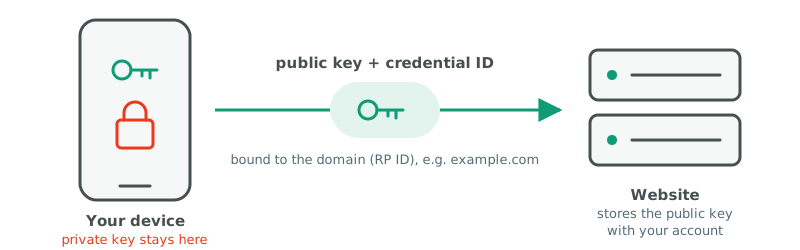
- Key pair: the authenticator generates a new key pair for this website only, usually ECDSA P-256 (ES256).
- Private key: stays in the TPM, Secure Enclave, security key or end-to-end encrypted password manager.
- Public key: is sent to the website together with a credential ID and stored with your account.
- Domain binding: the passkey is tied to the relying party ID, which is the domain of the website.
Login
Challenge and response
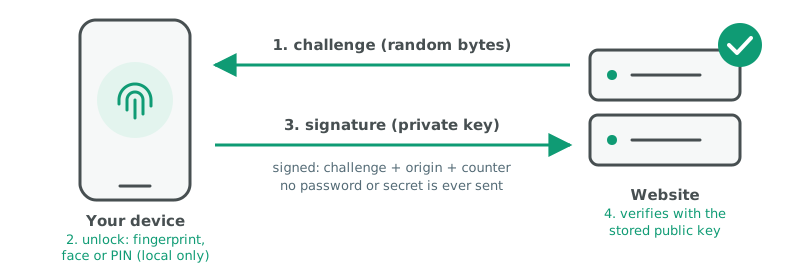
- Challenge: the website sends a random challenge that is different for every login.
- User verification: you unlock the private key with biometrics or a PIN. This check happens on the device only.
- Signature: the authenticator signs the challenge together with the origin and a signature counter.
- Verification: the website checks the signature with the stored public key. If it is valid, you are logged in.
No shared secret ever crosses the network. An intercepted signature is useless, because the next login uses a new challenge.
Phishing resistance
The browser checks the domain
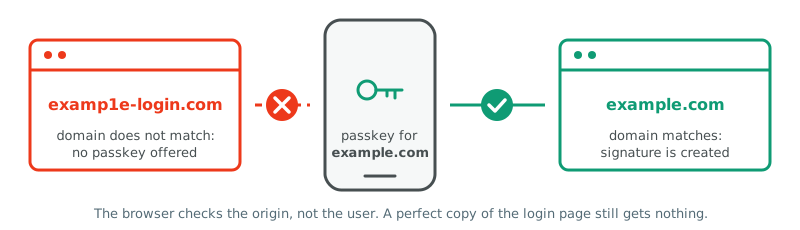
The browser only offers a passkey to the domain it was registered for. A look-alike domain gets no passkey and no signature, no matter how convincing the page looks. The user does not have to spot the fake site. The protocol does it.
Passkeys vs certificates and SSH keys
Same cryptography, different trust model
Passkeys use the same public key cryptography as certificates: a private key signs and a public key verifies. The way trust is established is different.
- No certificate authority: there is no CA and no chain of trust. The website simply stores your public key at registration and trusts exactly that key.
- One key pair per website: keys are never reused across sites, so websites cannot link your accounts through the key.
- Origin bound: the browser enforces the domain. A client certificate or SSH key has no built-in protection against being used on the wrong site.
- Closest comparison: SSH key authentication. The public key is stored server side, like in authorized_keys, and every login is a signed challenge.
Certificates do appear in one place: attestation. During registration an authenticator, for example a hardware security key, can prove its make and model with a certificate from the manufacturer. This is optional and mostly used by organisations that only allow specific hardware.
Where passkeys are stored
Synced or device-bound
- Synced passkeys: iCloud Keychain, Google Password Manager, Bitwarden, 1Password and similar. Available on all your devices, end-to-end encrypted.
- Device-bound passkeys: stored on one device or a hardware security key such as a YubiKey. The private key cannot be exported.
- Windows: Windows Hello stores passkeys locally, protected by the TPM.
- Cross-device login: a phone can sign in on another computer by scanning a QR code. Bluetooth proximity is required, which blocks remote relay attacks.
Practical tips
Avoid lockouts
- Register a passkey on at least two devices, or use a synced password manager.
- Keep recovery codes for important accounts in a safe place.
- Remove old passwords or other weak login methods where the website allows it. A fallback password is still phishable.
- Protect the account of your password manager or platform with strong authentication, because it guards all synced passkeys.
- Remove passkeys from the account settings when a device is lost or sold.
Flyers
One-page explanations to print or share (Dutch)
Three A4 flyers with the same explanation in different styles. Click a flyer to open it in full size.
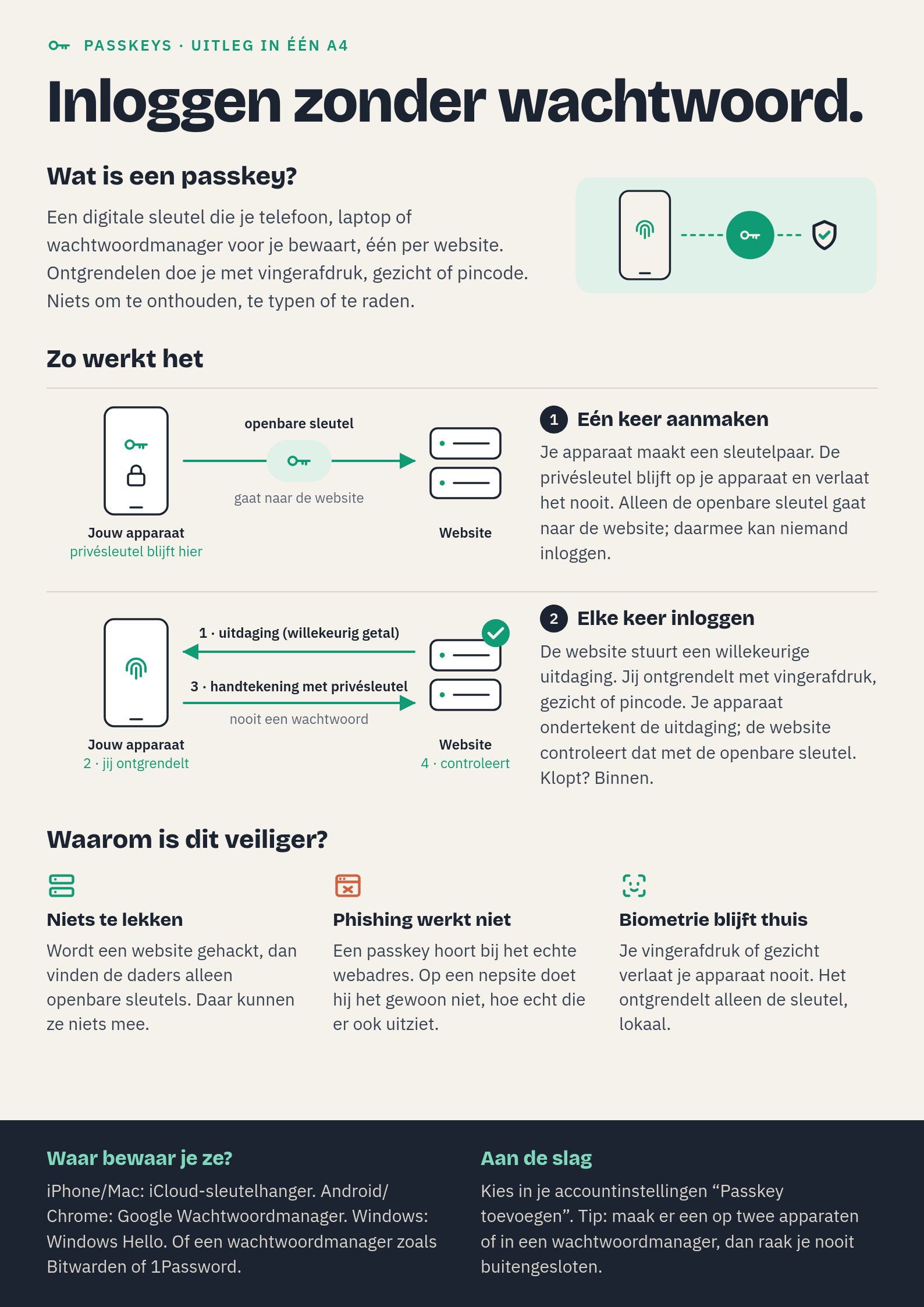
Flyer 1: explanatory, with diagrams of both steps.
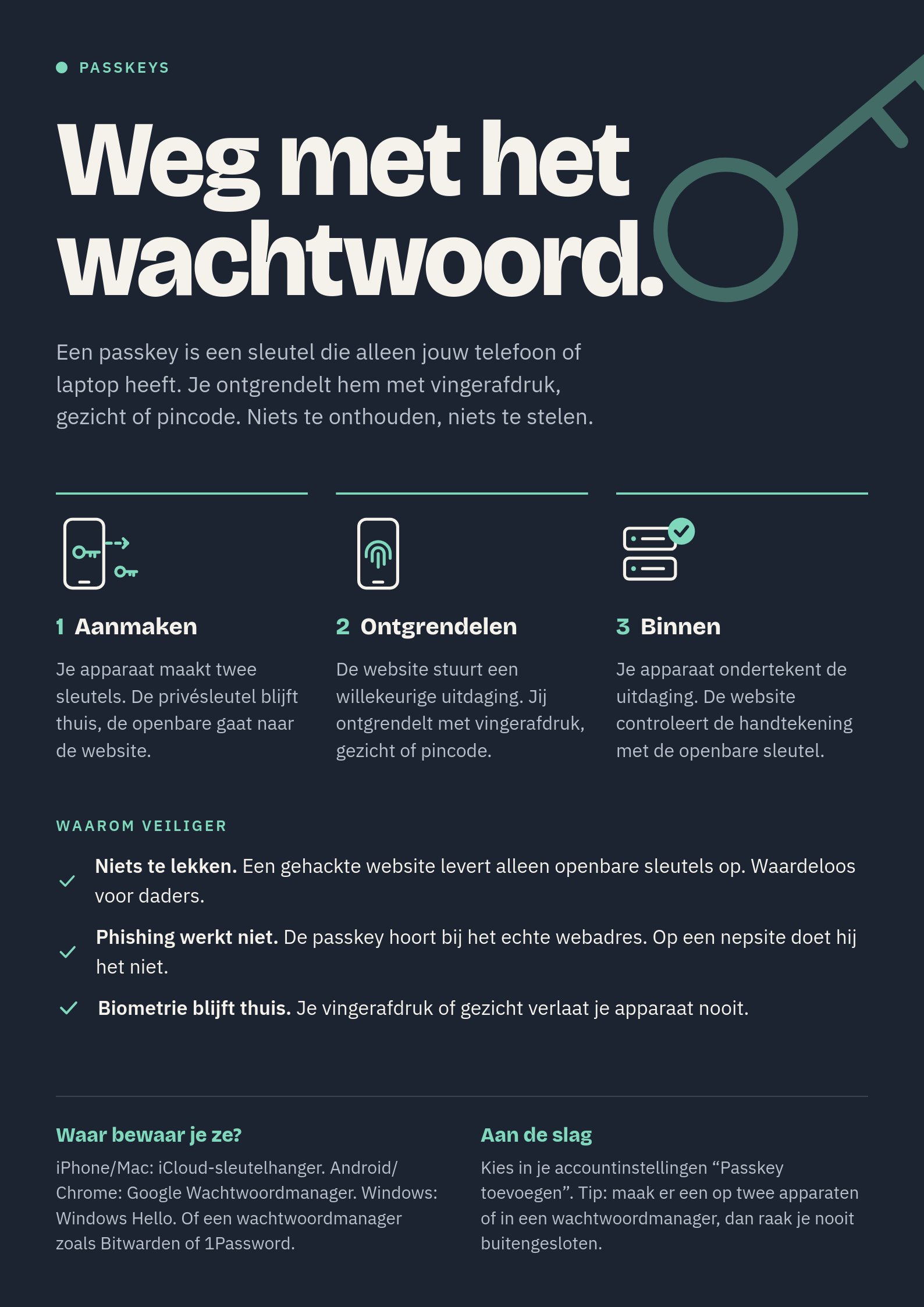
Flyer 2: dark poster with three steps.
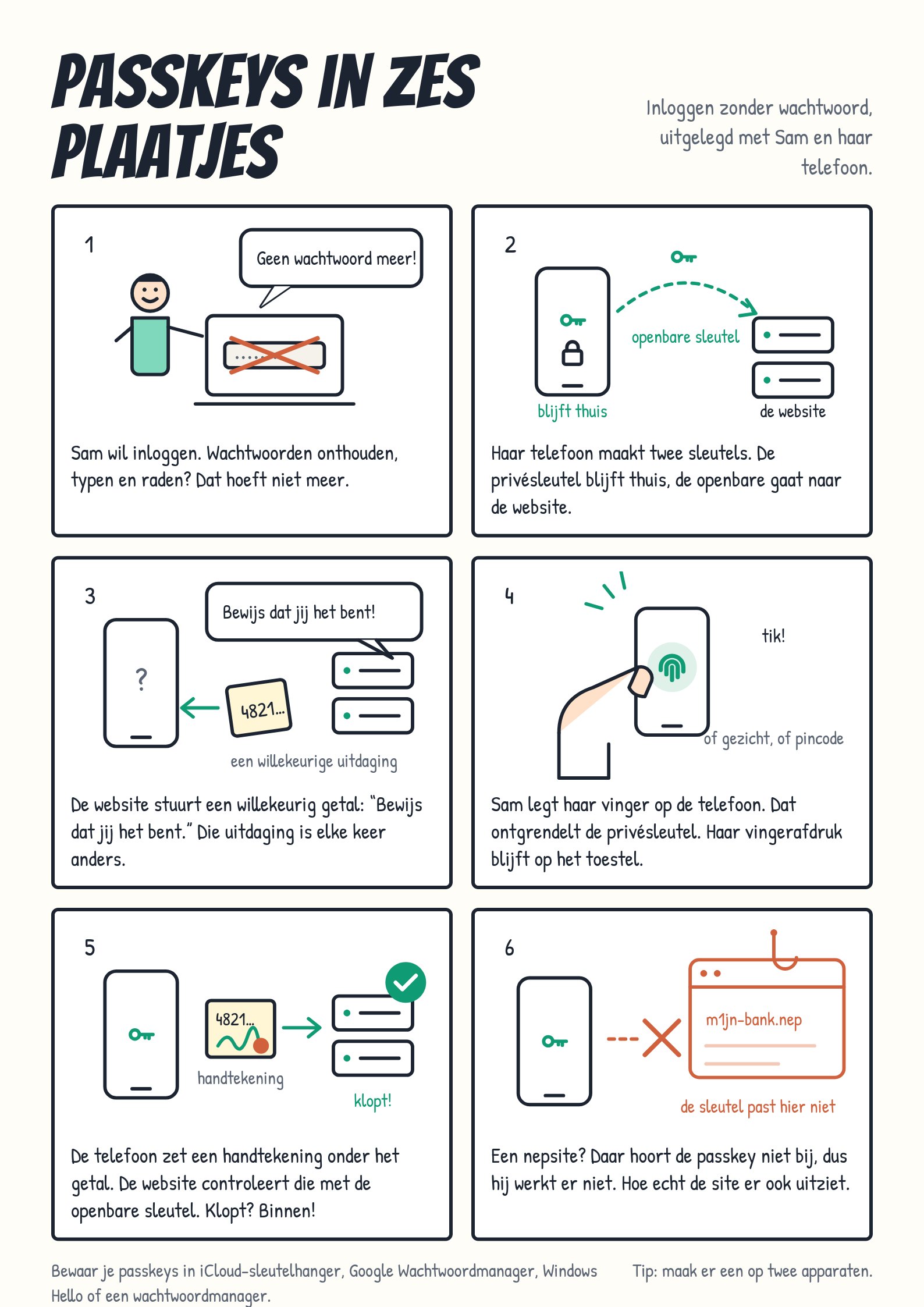
Flyer 3: comic strip in six panels.